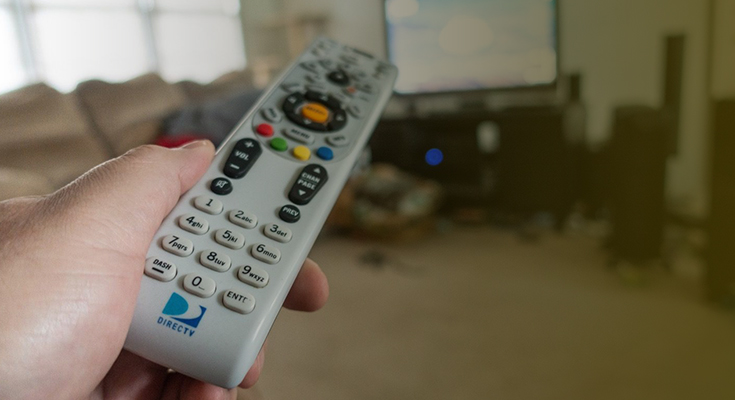
Have you installed a new DIRECTV but don’t know how to program DIRECTV remote? Or, you already programmed it, but the DIRECTV remote not working properly? You have to reset it quickly. A dead battery can be a key issue, so check it immediately. You may have dirty old remotes in which the buttons got stuck, and you are facing a problem pressing them. If you have instruction books, you need not to worry, and we are going to provide you with all the details for programming or resetting it. In this write-up, we discuss every detail about the DIRECTV remote, like how to change DIRECTV remotes, how to sync a DIRECTV Remote to a TV, the DIRECTV program remote, and more.
Types of DIRECTV Remotes
It’s essential to understand which kind of DIRECTV remote you have before moving into programming. There are two primary DIRECTV remotes.
- DIRECTV Universal Remote – This DIRECTV remote model functions with multiple devices, involving DVD players, TVs and audio systems.
- DIRECTV Genie Remote – It is featured for Genie DVRs but also accessible with several sound setups and multiple TVs.
Each DIRECTV remote codes for brand TV has its own programming procedure, so recognizing your remote will help in a quick reset or RC73 remote pairing mode.
How to Change DIRECTV Remotes?
To synchronize or switch a new DIRECTV remote, you need to follow a few crucial steps given below, for either a Genie or a Gemini Remote.
Genie Remote
- Reset the Remote – Tap and hold MUTE and SELECT until the green light flares twice.
- Mention Pairing Code – Tap 9, 6 and 1 on your keypad.
- Complete Reset – Tap CHANNEL UP and then SELECT, wait for a message to appear on your screen, ensuring that it is fine.
Gemini Remotes
- You need to confirm that the plastic battery has been replaced with a new remote.
- Tap and hold the FAST FORWARD and REWIND tabs for two to 3 seconds.
- Go through the on-screen TV instructions to complete the DIRECTV Gemini remote Bluetooth pairing.
How to Sync A DIRECTV Remote to a TV?
If you have a Universal Remote or Genie Remote, you need to go through the details below to sync them to a TV or other devices.
How to Program a DIRECTV Universal Remote?
Your DIRECTV universal remote can control up to four devices, including your DVD/Blu-ray players, DVRs, gaming consoles, soundbars & TVs.
Here’s how to program the DIRECTV remote for both SD and HD receivers.
- Press the Menu button on your universal remote.
- On the on-screen menu, choose Parental Favs & Setup > System Setup > Remote > Program Remote.
- Choose from the list of devices that you want to program the remote for. If your device isn’t listed, then you will have to search and enter the DIRECTV Remote code.
- Follow the on-screen commands to complete the process.
You can use these exact steps to program the DIRECTV universal remote for both SD and HD receivers. This would help you save a lot of time and effort. Here’s how to change the TV input source with the DIRECTV Universal remote.
- Slide the Mode Switch (which can be found at the top of the remote) to the TV.
- Hold the Mute & Select buttons at the same time and let go when the Greenlight flashes twice.
- Enter 960 in your remote and wait for the green light to flash again.
- Slide the Mode Switch to the DIRECTV Logo.
You can also change or follow the above instructions if your DIRECTV remote volume not working.
How to Program a DIRECTV Genie Remote?
Now that you’ve learned how to program the universal remote to your choice of device, let’s move on to how to program a DIRECTV Genie remote to a different receiver. If you have the Genie remote, then you can use both the automatic and manual pairing methods. Plus, you have a third option for DIRECTV-ready TVs. We’ll start with the automatic pairing process.
Program DIRECTV Genie Remote For Your HDTV or Audio Device
Follow the steps listed below carefully, and they’ll help you program your DIRECTV Genie remote automatically.
- Point the Genie remote at your Genie HD DVR, Genie Mini, or Wireless Genie Mini.
- While pointing the remote toward your DVR, hold down the Mute & Enter buttons. Keep holding till the Greenlight blinks twice.
- The TV should display “Applying IR/RF Setup.” Once you see this, it means you are in the RF mode; it’s time to program the remote.
- Turn on the device you are planning to pair the remote with.
- Press Menu on the remote.
- Choose Settings & Help > Settings > Remote Control > Program Remote.
- Follow the instructions you see on your screen to proceed.
If this doesn’t help you in pairing DIRECTV Genie with your choice of device, then you can also learn how to program DIRECTV Genie remote manually.
Program DIRECTV Genie Remote Manually
Follow the steps we have mentioned below to Program the DIRECTV Genie remote manually. These steps will guarantee to pair your remote with DIRECTV Stream packages or any other device.
- Point the Genie remote towards your Genie HD DVR, Genie Mini, or Wireless Genie Mini DVR.
- Hold down the Mute & Select buttons, and wait till the remote’s green light blinks twice.
- Enter 961
- Press the Channel Up button.
- Press Enter.
- You will see “Your Remote is now set up for RF.” on your TV screen.
- Select OK.
- Turn on the device you wish to pair the remote with.
- Press the menu button on the remote.
- Select Settings & Help > Settings > Remote Control > Program Remote.
- Select the device you want to pair from the list and follow the on-screen steps.
- Your remote is now paired and all ready to work.
That’s all it takes to program DIRECTV remote to the DVR receiver. You’ve learned both the automatic and manual programming processes; now, let’s move on to the last step. How to program a DIRECTV Genie remote with a DIRECT Ready TV?
Program Genie Remote With DIRECTV Ready TV
A DIRECTV Ready TV, when it is connected to the Genie DVR, allows you to watch DIRECTV without an extra Genie or Genie mini DVR. That’s why you need to learn how to program Genie Remote with DIRECTV Ready TV.
- Aim the remote towards your Genie DVR.
- Press and hold Mute and Enter. Let go of the buttons when the green light blinks twice.
- Your TV screen will show the message “Applying IR/RF Setup”.
- Turn on your DIRECTV-ready TV.
- Keep holding the Mute & Select buttons. Wait till the green lights blink again.
- Enter the Manufacturer’s code for your DIRECTV Ready TV. Here are the codes for Samsung, Sony & Toshiba.
- Samsung TV Code: 54000
- Sony TV Code: 54001
- Toshiba TV Code: 54002
- For other TVs, you can find the code on DIRECTV’s website lookup.
- Your remote will now be paired and working smoothly.
How to Program A DIRECTV Gemini Voice Control Remote?
- Voice Activation – The DIRECTV Gemini Voice remote uses Google Assistant for voice commands. Tap the Google Assistant/MIC button, wait for the blue light and speak your request.
- Common Commands – Change channels, seek for shows, control devices and request details such as sports or weather scores utilizing your voice.
- Pairing the Remote – To combine the remote with your Gemini device, tap and hold the DASH (-) and Apps buttons until the LED blinks blue. Resume the Gemini equipment and then click and hold FAST FORWARD and REWIND on the remote until combined.
- Programming Additional Devices – To manage TVs or sound bars, move to Settings> System> Remote & Devices> Program Your Remote and go through the instructions to choose your device brand.
- Personalization – Log into your Google Account during setup for customzied preferences. You can also perform this later by tapping the Google Assistant/MIC button and going through the on-screen instructions.
- Battery Check – If the remote is unreactive, try to cancel and reinsert the batteries or reposition them with fresh ones.
Final Words
You can run into countless errors if you don’t know how to reprogram DIRECTV remote. Luckily, we have covered all the bases in our guide. Follow the steps based on your device and the remote type, and learn how to set up a DIRECTV remote. If you are searching for new and exciting DIRECTV Packages, then our team at Club HDTV can help you get what you need. We help users find the best deals on their preferred services. Give us a call, and our experts will help you get better DIRECTV stream packages and DIRECTV channel lineup at discounted prices.
FAQs
Ans. You can program or reset your DIRECTV remote to factory settings by tapping the MUTE and HOLD buttons together, waiting for a green light to blink and then releasing both buttons. Type the code 981 and the green light will shines that indicates that your remote is programmed successfully to factory defaults.
Ans. You can program the remote without a code by switching on your device, tapping and holding the device button on your universal remote, waiting for the light to blaze and releasing both buttons together. Point the remote towards your device, and tap the Play button continuously for a few seconds, or tap the Channel Up button until your TV switches off. Now your remote has found the correct code after the TV or your device turned off, and tap Enter and Stop, or the Save tab to secure it. Again, switch on your TV or device and examine your buttons by increasing or decreasing volume or other features.